How to Clean Carbon Buildup Off Smart Home Light Switch Contacts?
Smart home light switches make life easier, but they wear out just like regular switches. Over time, tiny sparks inside the switch leave black soot on the metal contacts. This soot is carbon buildup, and it can cause flickering lights, weak signals, or a switch that stops working.
The good news? You can clean carbon off light switch contacts at home. You only need a few cheap tools and some patience.
This guide walks you through every step in plain language. You will learn what causes the problem, which cleaners work best, and how to protect your switch for the future.
Key Takeaways
- Always cut the power first at the breaker box. Smart switches still carry live current even when turned off through the app. Use a voltage tester to confirm there is no power before you open anything.
- Carbon buildup looks like black dust or crust on the metal contacts inside the switch. It forms because of small electrical arcs each time the switch operates. Heavy loads like motors or LEDs can speed up this buildup.
- The best cleaning tools are a quality electrical contact cleaner spray, a soft brush, lint free cloth, and fine grit sandpaper or a pencil eraser for stubborn spots. Never use water or household sprays inside the switch.
- Smart switches contain delicate circuit boards. So you should spray contact cleaner lightly and avoid soaking the electronics. Always let the switch dry fully before turning power back on.
- Some switches cannot be cleaned safely. If the plastic housing is sealed or the contacts are burnt deep, replacing the switch is cheaper and safer than repairing it.
- Prevention beats cleaning. Use switches rated for your bulb wattage, avoid using dimmers with non dimmable LEDs, and dust your switch covers every few months.
What Carbon Buildup Means on Smart Switch Contacts
Carbon buildup is the black powdery layer that forms on metal contacts inside a switch. Every time you flip a switch, a tiny electrical arc jumps between the metal parts. That arc burns the air and any dust nearby.
The burning leaves behind soot. This soot mixes with oxidation from the metal itself. Over months or years, the layer gets thicker. Eventually, electricity struggles to pass through the contacts cleanly.
In a smart switch, this matters more than in a basic switch. Smart switches use small currents to power their chips and WiFi modules. Even a thin layer of carbon can block that signal. Then your switch may go offline, respond slowly, or stop dimming smoothly. Understanding the cause helps you pick the right cleaning method.
Signs Your Smart Switch Has Carbon Buildup
You will notice clear warning signs before a switch fully fails. Flickering lights are the most common red flag. The bulb may dim for a second when you press the switch or use the app.
Other signs include a buzzing or crackling sound from the wall plate. The switch might feel warm to the touch. Sometimes you can smell a faint burnt plastic odor near the switch.
Smart features may also act strange. Your switch could drop off the network often. Voice commands may take longer to work. Dimming may jump in steps instead of moving smoothly. If you see two or more of these signs together, carbon buildup is likely the cause. Catching it early makes cleaning much easier and safer.
Tools and Supplies You Will Need
Gather everything before you start. This keeps your hands clean and your work flow smooth. You do not need expensive gear for this job.
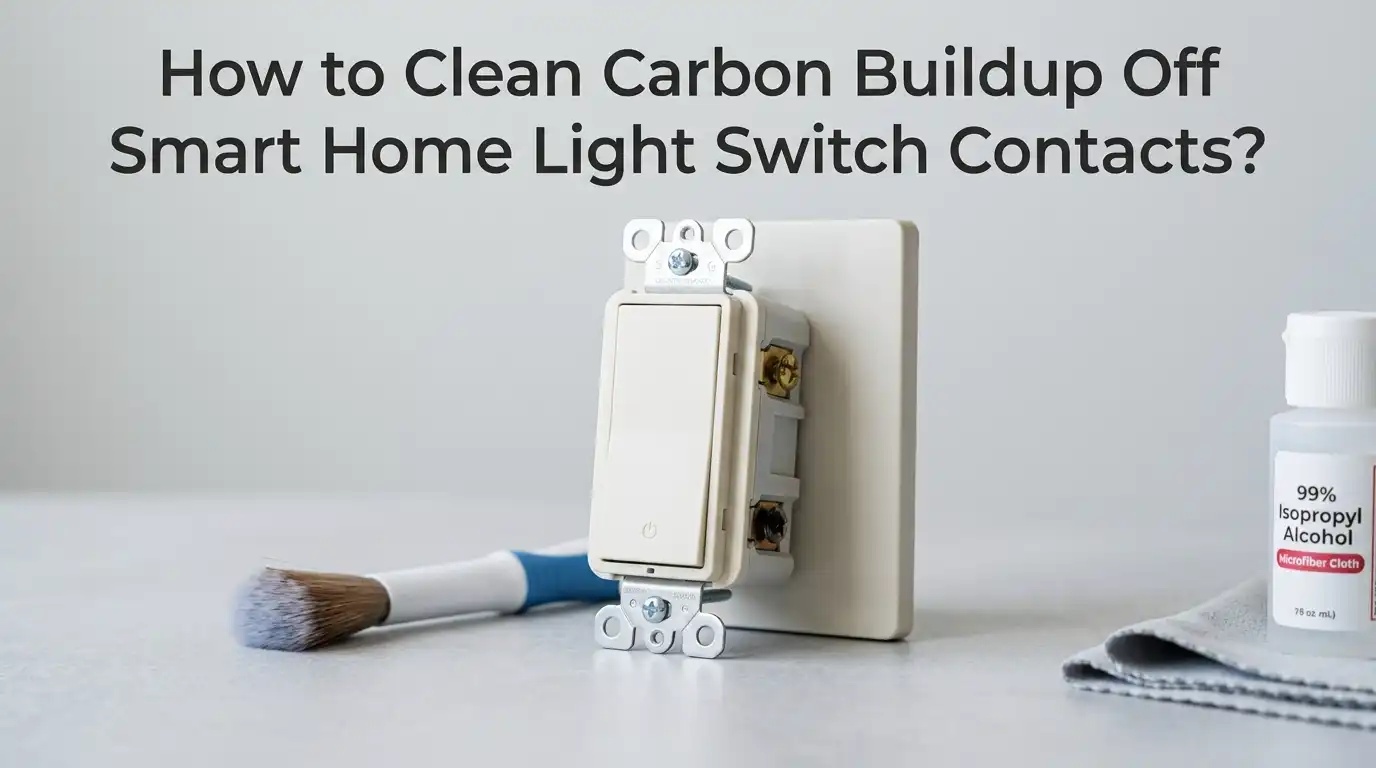
You will need a non contact voltage tester, a Phillips and flat head screwdriver, an electrical contact cleaner spray such as DeoxIT or CRC QD, a soft bristle brush like an old toothbrush, lint free microfiber cloths, fine grit sandpaper around 600 to 1000 grit, a pencil eraser, cotton swabs, and a small flashlight or headlamp.
Avoid using WD 40, water, vinegar, or rubbing alcohol inside the switch. WD 40 leaves an oily film. Water causes shorts. Vinegar corrodes copper over time. Pick a cleaner labeled safe for plastics and electronics. Wear safety glasses and rubber soled shoes while you work. Lay a small towel below your work area to catch screws and dust.
Step One: Turn Off Power and Test It
Safety comes first. Walk to your breaker box and find the breaker that controls the switch. Flip it to the off position. Do not trust the wall switch or the smart app to cut power.
Return to the switch and test it with your non contact voltage tester. Hold the tester near the screws on the side of the switch. If it lights up or beeps, power is still on. Go back and find the right breaker.
Once the tester stays silent, you are safe to work. Tape a note on the breaker box so no one flips the power back on while you are working. If you live with others, tell them what you are doing. This simple step prevents shocks and burns. Smart switches can carry power even when off through software, so this step is not optional.
Step Two: Remove the Switch From the Wall
Unscrew the wall plate first. Most smart switches have a separate plate that pops off after you remove two small screws. Set the plate and screws aside in a small bowl.
Next, unscrew the two long screws that hold the switch to the electrical box. Pull the switch gently out of the wall. Do not yank it. The wires behind it are short and stiff.
Take a clear photo of the wiring before you disconnect anything. This photo will save you later when you put things back. Note which wire goes to which terminal. Smart switches often have a neutral wire, a load wire, a line wire, and sometimes a traveler wire. Loosen the screws or release the push in connectors slowly. Place the switch on a clean dry surface for cleaning.
Step Three: Open the Switch Housing if Possible
Some smart switches let you access the contacts through small vents. Others are sealed shut. Look at your switch carefully before you try to open it.
If the housing has visible screws or clips, open it gently with a flat head screwdriver. Work slowly so you do not snap the plastic tabs. Once open, you should see the metal contacts inside. They will look black or dark gray if carbon is built up.
Many smart switches are factory sealed and not meant to be opened. Forcing them apart can break the chip inside or void your warranty. If yours is sealed, you can still spray cleaner through the small openings on the side. You will not get a deep clean, but it often helps enough to fix minor issues. Know your switch before you pry.
Pros of opening: deeper clean, better long term results.
Cons of opening: risk of breaking parts, may void warranty.
Step Four: Brush Off Loose Carbon Dust
Start with the gentlest method. Hold the switch upside down so debris falls out, not in. Use your soft toothbrush to sweep across the contacts.
You will see black dust flake off. Brush in one direction only, not back and forth. This keeps the carbon from getting pushed deeper into the gaps. Tap the switch lightly on a paper towel to drop the loose particles.
A small can of compressed air helps too. Hold the can upright and use short bursts. Long bursts can release cold liquid that damages plastic. Aim the nozzle at the contacts from a few inches away.
This dry method removes about half of the buildup in most cases. It works best for light carbon layers. For thicker crust, you will need a chemical cleaner next.
Pros of dry brushing: safe, cheap, no chemicals.
Cons of dry brushing: does not remove stuck on carbon.
Step Five: Apply Electrical Contact Cleaner
Now use your contact cleaner spray. Shake the can well. Hold it about six inches from the contacts and give a short two second burst.
You will see the cleaner foam up and run off, carrying carbon with it. Let it drip onto a paper towel below the switch. Do not spray the circuit board directly. Aim only at the metal contact points.
If your switch has moving parts inside, flip the switch on and off ten or fifteen times while wet. This action helps the cleaner reach hidden spots between the contact pads.
Spray a second time if the runoff still looks dark. Quality contact cleaners evaporate fast and leave no residue. Cheap cleaners may leave a film that attracts more dust later. Always read the label to confirm the product is plastic safe.
Pros of contact cleaner: dissolves stubborn carbon, dries fast.
Cons of contact cleaner: costs more, fumes need ventilation.
Step Six: Polish Stubborn Spots With an Eraser
Sometimes carbon hardens into a crust that cleaner alone cannot remove. This is where a plain pencil eraser shines. The mild abrasive surface scrubs metal without scratching it.
Cut a small piece off the eraser. Press it against the contact and rub in small circles. You will see the eraser turn black as it lifts the carbon. Replace the piece as it gets dirty.
For really tough spots, use fine grit sandpaper folded into a thin strip. Slide it between the contact points like dental floss. Pull it back and forth a few times.
Stop as soon as you see shiny metal. Over sanding wears down the contact and shortens its life. Wipe away dust with a cotton swab dipped in contact cleaner before moving on.
Pros of eraser method: removes hardened carbon, very precise.
Cons of eraser method: takes time, can leave rubber bits behind.
Step Seven: Dry the Switch Completely
After cleaning, the switch must be fully dry before you reinstall it. Even though contact cleaner evaporates fast, hidden moisture can still cause shorts.
Set the switch on a clean towel in a warm dry spot. Let it sit for at least thirty minutes. A small fan blowing across it speeds this up. Do not use a hair dryer on high heat. The heat can warp plastic parts.
Check every opening with your flashlight before putting the switch back. Look for any liquid pooled near the chip or wires. Tilt the switch in different directions to drain any trapped drops.
Once everything looks dry, snap the housing back together if you opened it. Smart switches with sealed designs usually dry faster since less cleaner gets inside.
Step Eight: Reinstall and Test the Switch
Put the switch back the same way you took it out. Use your wiring photo to match each wire to its correct terminal. Tighten the screws firmly but do not overtighten.
Push the switch carefully into the electrical box. Fold the wires in a zigzag pattern behind it so they do not bunch up. Screw the switch into place, then attach the wall plate.
Now go back to the breaker box and flip the power on. Return to the switch and test it. Press the button or use your app. The light should respond instantly and without flicker.
If it works smoothly, your cleaning was a success. If problems remain, the contacts may be too damaged to save. In that case, replacing the switch is the next step.
When You Should Replace Instead of Clean
Cleaning works for mild to moderate carbon buildup. But some damage is past the point of repair. Knowing when to stop saves time and prevents fire risk.
Look for deep pitting on the metal contacts. Pitting means the surface has burned away in spots. No amount of cleaning fixes that. Also watch for melted plastic, cracked housings, or a burnt smell that lingers after cleaning.
If the switch trips your breaker after cleaning, replace it right away. The internal damage is too severe. Smart switches usually last five to ten years with normal use.
After that, replacing is often cheaper than repeated cleaning. Buy a new switch rated for your bulb type and wattage. Modern switches with better arc suppression last longer and build up less carbon in the first place.
How to Prevent Carbon Buildup in the Future
Prevention is easier than cleaning. A few small habits keep your switches working for years longer.
First, match your switch to your bulbs. Use dimmers only with dimmable LEDs. Mismatched loads cause heavy arcing inside the switch. Second, do not overload the switch beyond its amp rating. Check the label on the back of the switch before installing.
Dust your wall plates every few weeks with a dry microfiber cloth. Dust pulled into the switch by airflow becomes fuel for carbon. Avoid spraying air fresheners or cleaning products near switches.
Their chemicals stick to internal parts. Install switches in dry rooms only, or use sealed models in bathrooms and kitchens. Humidity speeds up oxidation. These small steps stretch the life of every switch in your home.
FAQs
Can I use rubbing alcohol to clean smart switch contacts?
Rubbing alcohol works in a pinch, but it is not the best choice. It can leave water residue and may damage some plastic parts. Use isopropyl alcohol of 99 percent purity only, and apply it sparingly with a cotton swab. A proper electrical contact cleaner is always safer for smart switches.
How often should I clean my smart light switch contacts?
Most homes need this only every three to five years. If you notice flickering, buzzing, or app issues sooner, clean it right away. Switches in high use areas like kitchens or living rooms may need attention more often than those in guest rooms.
Is it safe to open a smart switch myself?
It is safe if you cut the power first and test with a voltage tester. However, opening the housing may void the warranty. Check your manual before prying anything apart. If you feel unsure, call a licensed electrician for help.
Will cleaning the contacts make my smart switch work faster?
Yes, in many cases. Clean contacts let signals pass without resistance. This often fixes slow app responses, dropped WiFi connections, and laggy voice commands. If problems remain after cleaning, the issue may be your network or the chip inside the switch.
What is the best contact cleaner for smart switches?
Look for sprays labeled plastic safe and fast drying. DeoxIT D5, CRC QD Electronic Cleaner, and similar products work well. Avoid heavy duty industrial cleaners meant for motors. Those can melt plastic parts in delicate smart devices.