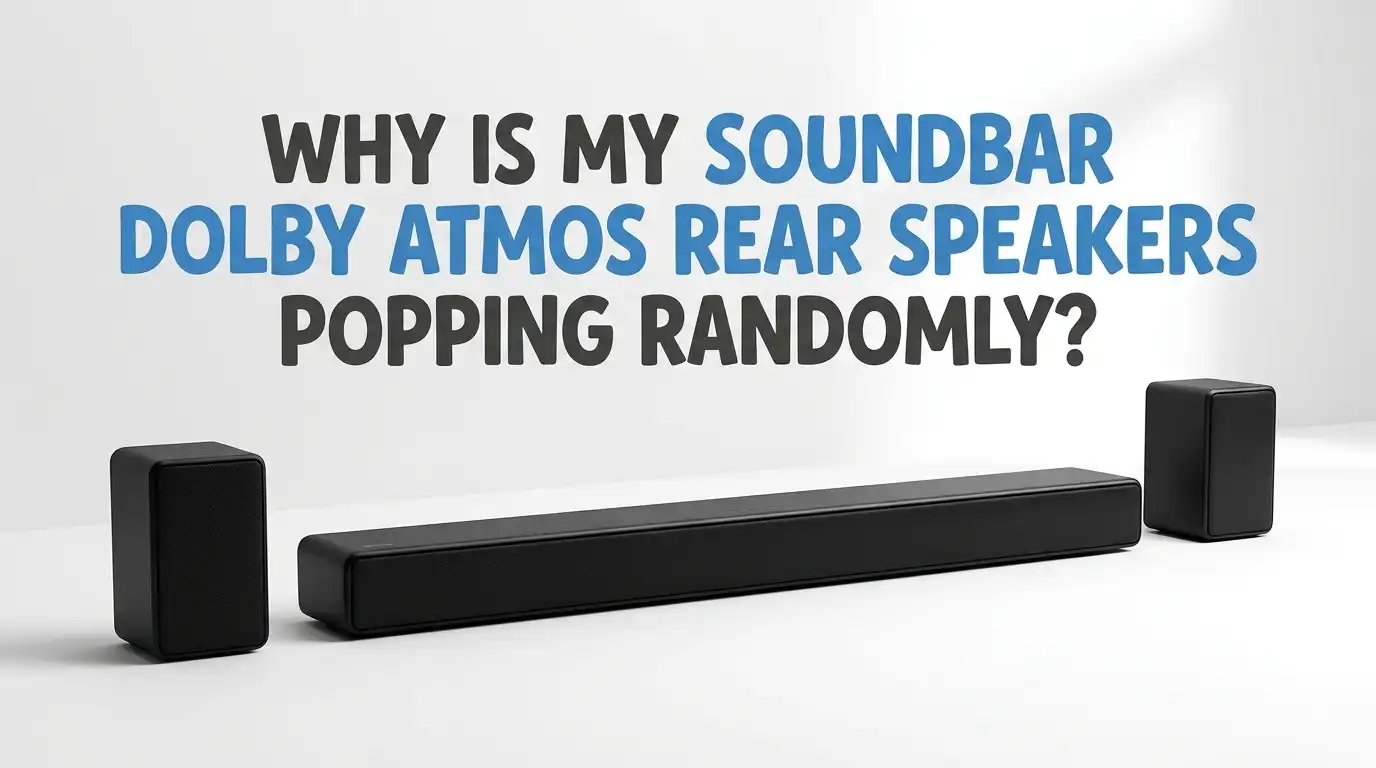
Why Is My Soundbar Dolby Atmos Rear Speakers Popping Randomly?
Your movie hits a quiet scene. Then pop. A sharp crackle jumps out of your rear speakers for no reason. It happens again during a song.
It happens when nothing plays at all. You paid good money for that immersive Dolby Atmos sound, and now random popping noises keep breaking the spell.
You are not alone. Thousands of soundbar owners report this exact issue across brands like Samsung, Sonos, LG, JBL, Polk, and Nakamichi. The good news is that most popping problems come from a handful of fixable causes. You do not need to be a technician to solve them.
Key Takeaways:
- Wireless interference is the number one cause. Your Wi-Fi router, microwave, or cordless phone can disrupt the signal between your soundbar and its rear speakers. Moving these devices apart fixes most cases.
- HDMI eARC handshake glitches create pops when audio formats switch between Dolby Atmos, PCM, and Dolby Digital. A firmware update or a better HDMI cable often clears this.
- Power and ground loop issues push electrical noise into your speakers. A different outlet or a ground loop isolator stops the buzz and crackle.
- Loose connections and faulty cables cause intermittent pops that come and go. Reseating every cable takes five minutes and solves a surprising number of problems.
- A simple power cycle and factory reset clears stuck audio buffers and software bugs. This is often the fastest first step.
- Outdated firmware is a hidden culprit. Manufacturers release patches that fix Atmos popping bugs, so always update your soundbar.
What Causes Random Popping in Dolby Atmos Rear Speakers?
Random popping happens when something interrupts the clean audio signal reaching your rear speakers. The interruption can be wireless, electrical, or digital. Each pop is a tiny gap or spike in the sound data.
Wireless rear speakers are the most common type in modern soundbar kits. They receive audio over a radio signal from the main bar. Anything that disturbs that signal creates a pop or crackle.
Wired Atmos systems pop for different reasons. These include loose plugs, damaged wires, or electrical noise from the power supply. Dolby Atmos itself adds another layer of complexity.
It uses object based audio that constantly switches formats. Each format switch forces your soundbar to renegotiate its connection, and a bad handshake produces an audible pop. Knowing your speaker type helps you pick the right fix below.
Check for Wireless Interference From Your Router and Devices
Wireless interference is the top reason rear speakers pop randomly. Your soundbar and rear speakers talk to each other on the 2.4GHz or 5GHz band, the same range your Wi-Fi router uses. When signals collide, you hear pops.
Start by looking at where your router sits. If it stands directly behind or beside your soundbar, subwoofer, or rear speakers, move it. Even a few feet of distance helps. Microwaves, baby monitors, cordless phones, and Bluetooth gadgets cause the same problem.
Reboot your router so it picks a clearer channel. Then test your speakers again with the router in a new spot.
Pros: This fix is free, fast, and solves most random popping cases. Cons: You may need to test several router positions before the noise stops, and a crowded apartment with many networks can limit how clean a signal you get.
Change Your Wi-Fi Channel to Reduce Signal Collisions
If moving devices did not fully stop the pops, change your Wi-Fi channel next. Many homes sit on the same default channels, which jams the airwaves and disturbs your rear speakers.
Log into your router settings through its app or web page. Look for the wireless channel option. On the 2.4GHz band, channels 1, 6, and 11 do not overlap, so pick whichever one is least crowded. On 5GHz, choose a channel far from your neighbors’ networks.
A free Wi-Fi analyzer app on your phone shows which channels are busy. Use it to find the quietest one. Then save the change and restart your router.
Pros: This often eliminates popping caused by network congestion, and it improves your whole home network too. Cons: Some budget routers hide these settings or do not allow manual channel choice, and you may need to repeat the process if neighbors change their setups.
Inspect and Reseat All HDMI and Power Cables
Loose or damaged cables cause pops that appear at random. A connection that is slightly loose passes audio most of the time, then drops it for a split second, and that gap becomes a pop.
Power off your soundbar and TV first. Then unplug every HDMI cable at both ends and push them back in firmly. Do the same for the power cables on your soundbar, subwoofer, and any wired rear speakers. Check that wired speaker terminals grip the wire tightly with no loose strands.
Look closely at each cable for bent pins, frayed wires, or kinks. Replace anything that looks worn.
Pros: Reseating cables takes only a few minutes and fixes many intermittent popping issues at zero cost. Cons: Damaged cables need replacing, which costs money, and reaching cables behind wall mounted gear can be awkward.
Fix HDMI eARC Handshake and Audio Format Switching Issues
Dolby Atmos travels to your soundbar through HDMI eARC. Every time the audio format changes, your TV and soundbar perform a handshake, and a failed handshake creates a sharp pop or chirp. This explains pops when you start, stop, or skip content.
First, make sure you use an HDMI cable rated for high speed or ultra high speed. Older cables cannot carry the full Atmos data stream, which triggers handshake errors. Plug into the port labeled eARC on both devices.
Next, dig into your TV audio settings. Try switching the digital audio output to a fixed format or to PCM to test if pops stop.
Pros: A proper eARC setup delivers stable Atmos and removes format related pops. Cons: Forcing PCM can disable true Atmos passthrough on some TVs, so you may trade immersion for silence until a firmware fix arrives.
Update Your Soundbar and TV Firmware
Outdated firmware is a hidden cause of random popping. Manufacturers release updates that patch known Atmos bugs, and many popping complaints disappear after an update.
Open your soundbar’s companion app or its on screen menu. Look for a software or firmware update option and install anything available. Do the same for your TV, your streaming box, and your game console. All of these devices share the audio chain, so any one of them can introduce a pop.
Restart every device after updating. Then test a few different audio sources to confirm the noise is gone.
Pros: Firmware updates fix deep software bugs that no cable swap can solve, and they often add new features too. Cons: Updates take time and need a stable internet connection, and on rare occasions a new update introduces fresh bugs that require another patch.
Power Cycle and Factory Reset Your Soundbar System
A stuck audio buffer or a software glitch causes pops that no setting seems to fix. A full power cycle clears the soundbar’s memory and often stops the popping instantly.
Turn off your soundbar, subwoofer, rear speakers, and TV. Unplug them all from the wall and wait at least sixty seconds. This lets every capacitor fully discharge. Then plug them back in one at a time and let each device fully boot before adding the next.
If pops continue, perform a factory reset. Each brand uses a different button combination, so check your manual. After a reset, you re pair the rear speakers fresh.
Pros: This clears software faults fast and costs nothing. Cons: A factory reset erases your custom settings, so you must set up your sound modes, EQ, and speaker calibration again from scratch.
Re-Pair and Re-Calibrate Your Wireless Rear Speakers
Wireless rear speakers can lose their tight connection to the main bar over time. A weak or partial pairing causes the signal to drop briefly, and that drop becomes a pop. Re pairing rebuilds a clean link.
Find the pairing or connect button on your soundbar and rear speakers. Hold it as your manual describes until the status lights confirm a new pairing. Place the rear speakers closer to the main unit during this step to ensure a strong handshake.
Many soundbars also offer a calibration or auto tune feature. Run it so the system rebalances the rear channels.
Pros: Fresh pairing restores a stable wireless link and often clears popping for good. Cons: Speakers placed far from the bar may keep dropping signal in large rooms, and some older models lose pairing again after a power outage.
Solve Ground Loop and Electrical Noise Problems
Sometimes the pop is not data loss but electrical noise. A ground loop happens when your devices connect to outlets with slightly different electrical grounds, and this pushes hum, buzz, and pops into your speakers.
Try plugging your soundbar and TV into the same wall outlet or the same power strip. This puts them on a shared ground and often kills the noise. Avoid plugging audio gear into outlets that share a circuit with fridges, motors, or LED dimmers.
If the noise stays, a ground loop isolator placed on the audio line can block the interference.
Pros: Sharing one outlet is free and stops many electrical pops, while an isolator gives a reliable permanent fix. Cons: Tracing a ground loop takes patience, and a cheap isolator can slightly reduce audio quality if it is poorly made.
Adjust Volume Levels and Audio Settings
Pushing your system too hard creates popping that sounds like distortion. When the volume runs near maximum, the speakers and amplifier strain, and loud Atmos peaks clip into pops.
Lower your overall volume and test again. If the pops only appear during loud action scenes or sudden bass hits, your speakers are overdriving. Reduce the rear channel level in your soundbar settings rather than the master volume.
Turn off heavy audio processing modes you do not need. Features like dynamic range expansion or virtual sound enhancers can introduce artifacts that sound like pops on some content.
Pros: Adjusting levels is instant and protects your speakers from long term damage. Cons: Lower volume reduces the cinematic impact you wanted, and disabling processing modes may flatten the immersive Atmos effect you enjoy.
Reduce Bluetooth and Smart Home Device Interference
Your soundbar is rarely the only wireless device in the room. Bluetooth headphones, smart bulbs, smart plugs, and voice assistants all crowd the same airwaves and can disrupt your rear speaker signal.
Turn off Bluetooth on nearby phones and tablets while you test. Move smart home hubs and plugs away from the soundbar and rear speakers. Even a phone left next to a rear speaker can cause occasional pops as it pings towers and networks.
Try testing late at night when fewer devices are active. If the popping vanishes, a nearby gadget is your culprit, and you can relocate it permanently.
Pros: Spotting and moving one noisy device gives a clean, lasting fix. Cons: A home full of smart devices makes the source hard to pin down, and you may not want to relocate gear you rely on daily.
When to Contact Support or Replace Your Soundbar
If you tried every fix and the popping continues, the hardware may be faulty. A defective amplifier board, a damaged rear speaker driver, or a bad wireless module produces pops that no setting can cure.
Contact the manufacturer’s support team first. Describe exactly when the pops happen and list every fix you already tried, because this speeds up their diagnosis. If your soundbar is under warranty, they often repair or replace it free.
Several owners report that a second unit of the same model fixed the issue, which points to a defect.
Pros: A warranty replacement gives you working gear at no cost. Cons: The process takes time, you may be without your system for weeks, and out of warranty repairs can cost nearly as much as a new unit.
Frequently Asked Questions
Why do my rear speakers pop only during Dolby Atmos content?
Dolby Atmos switches audio formats constantly as scenes change. Each switch forces an HDMI handshake between your TV and soundbar. A weak cable or a firmware bug makes that handshake fail, and the failure produces a pop. Updating firmware and using a high speed HDMI cable usually fixes this.
Is random popping a sign my soundbar is broken?
Not always. Most popping comes from wireless interference, loose cables, or software glitches, not hardware failure. Work through the fixes in this guide first. If the pops survive a factory reset, fresh pairing, and firmware update, then hardware fault becomes likely, and you should contact support.
Can Wi-Fi really cause my speakers to pop?
Yes. Wireless rear speakers use the same radio bands as your Wi-Fi router. When the signals collide, you hear pops and crackles. Moving your router away from the soundbar and changing your Wi-Fi channel solves a large share of popping complaints across all brands.
Will a factory reset delete my settings?
Yes, a factory reset erases your sound modes, EQ adjustments, and speaker calibration. You must set these up again afterward. For this reason, try a simple power cycle first, since it clears many glitches without wiping your saved preferences. Use the full reset only if the power cycle fails.
How do I know if it is a ground loop problem?
A ground loop usually makes a steady hum or buzz alongside the pops, and the noise stays even when nothing plays. Plug your soundbar and TV into the same outlet to test. If the noise drops, you have a ground loop, and a ground loop isolator gives a permanent fix.
Should I use PCM instead of Dolby Atmos to stop popping?
Switching to PCM can stop format related pops, but it disables true Atmos surround on many setups. Treat this as a temporary test, not a final solution. If PCM stops the popping, you have confirmed an Atmos handshake problem, and a firmware update or a better HDMI cable is the proper fix to keep your immersive sound.